2. Configure Telephony |
  
|
2. Configure Telephony |
|
In the configuration of Xpert-Timer (Edit -> Configuration) you find the settings for the telephony module.
Choose the phone line you use. In order to see a phone line, a TAPI driver must be installed on your system. Please note, that the TAPI driver of the company AVM causes problems with external calls.
So, choose the phone line and enter your phone number without your area code. Please note, that every single user should enter his own phone number, otherwise multiple Xpert-Timer in your company will react upon a phone call.

Now you can decide how Xpert-Timer should react upon a phone call. Set the radio buttons the way you need.
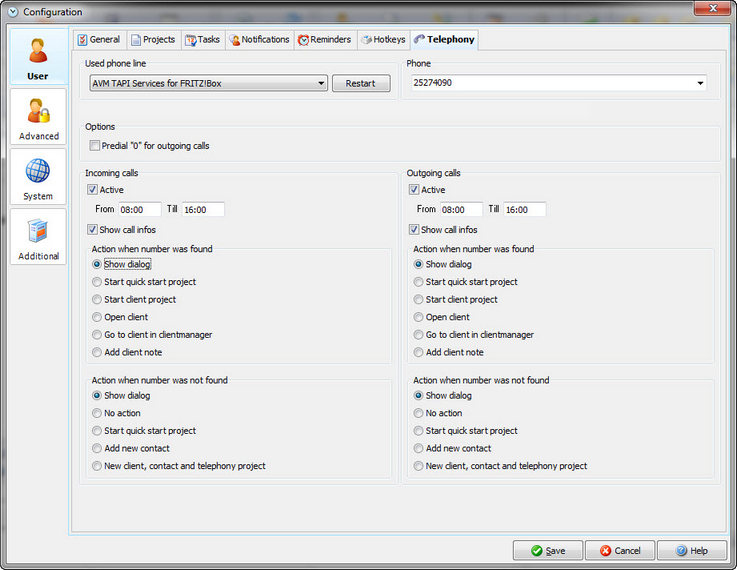
Action when number was found |
|
Show dialog |
With this option, following dialog will open, when the number calling in is recognized: For incoming calls:Start quick start project: This way you will start the timer for a project named "Quick start project". After you've finished the phone call you can decide whether to move the project to a client, or move the timestamp of the quick start project to another project. Add new contact: This option allows you to create a new contact for an existing client in your Xpert-Timer system. New client, contact and telephony project: If someone calls, who has not been setup as a client in your Xpert-Timer system yet, you can setup all details at once. For outgoing calls:Start quick start projekct: This way you will start the timer for a project named "Quick start project". After you've finished the phone call you can decide whether to move the project to a client, or move the timestamp of the quick start project to another project. Start client project: Start the timer for the telephony project you have assigned to the client. Open client: In this case you open the the client details in your client manager of Xpert-Timer Go to client in client manager: The focus in your client manager will be set on the called client. Add client note: Using this function you can immediately add a note in the "Notes" tab of your client in the client manager. |
Start quick start project |
This function you will start the timer for a project named "Quick start project". After you've finished the phone call you can decide whether to move the project to a client, or move the timestamp of the quick start project to another project. |
Start client project |
This function will start the timer for a project named "Quick start project". After you've finished the phone call you can decide whether to move the project to a client, or move the timestamp of the quick start project to another project. |
Open client |
Opens the client details in the client manager. |
Go to client in client manager |
The focus in your client manager will be set on the called client. |
Add client note: |
Using this function you can immediately add a note in the "Notes" tab of your client in the client manager. |
Action when number was not found |
|
Show dialog |
See above |
No action |
Xpert-Timer will not react. You have to start a project manually or add the new client manually. |
Start quick start project |
This function you will start the timer for a project named "Quick start project". After you've finished the phone call you can decide whether to move the project to a client, or move the timestamp of the quick start project to another project. |
Add new contact |
This option allows you to create a new contact for an existing client in your Xpert-Timer system. |
New client, contact and telephony project |
If someone calls, who has not been setup as a client in your Xpert-Timer system yet, you can setup all details at once. The phone project will automatically start running. |

