Workgroups |
  
|
Workgroups |
|
Workgroups are supposed to structure the visibility of your projects in Xpert-Timer. You can create as many workgroups as you want and therefore build as many project teams as you like.
In previous versions of Xpert-Timer it was only possible to view your own projects or the projects of all users. Now it's possible to view your own projects, the projects of your workgroup and/or all projects in the company. There are two ways to implement the workgroups. The option to have "Multiple workgroups per user" or the option to have "Only one workgroup per user". Once you have assigned a user to a workgroup, you can now assign projects to each workgroup. The last step is then to assign a project of the workgroup to users in the workgroup. You need to take some time to decide your structure. You can assign more access rights to your team managers, so that they can then see the projects of their team, but not all projects created in the company.
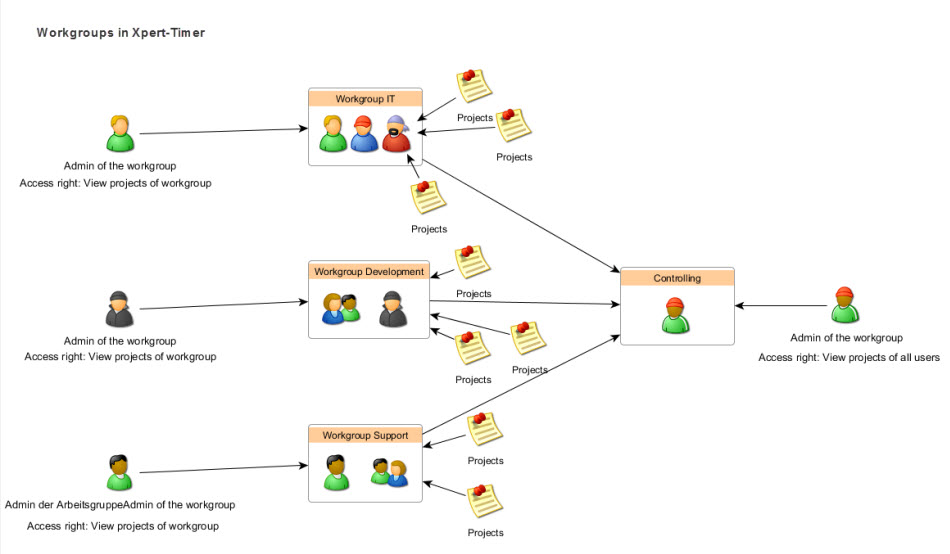
After the upgrade to version 4:
1. In case you want to use workgroups, create a new workgroup by pointing to "Windows" -> Workgroups. Create a workgroup and assign each user to one or multiple workgroups.
2. Double-check now, that you have set a standard workgroup for each user. This workgroup is used, when the user creates new projects.
3. If you open the user settings, you can also assign a workgroup (if you are using the mode "Multiple workgroups for each user"). Only in this case you'll the the workgroup tab.