User settings |
  
|
User settings |
|
Click on "Add new user" in order to create a new user for your Xpert-Timer system.
If you double click on a user in your User Administration dialog this window will open. The easiest way to add new users to your Xpert-Timer system is to start Xpert-Timer from their computer. The program will notice, that the user does not exist in the database and will add it automatically. Xpert-Timer uses the Windows Login by default. All new users will be granted the Basic Access Level. Only the first user added to the database will be granted the Administrator level. Make sure you assign the correct Access levels to the users.
In case you have users, that don't work for the company any more, you can deactivate the user unchecking the "Active" box.
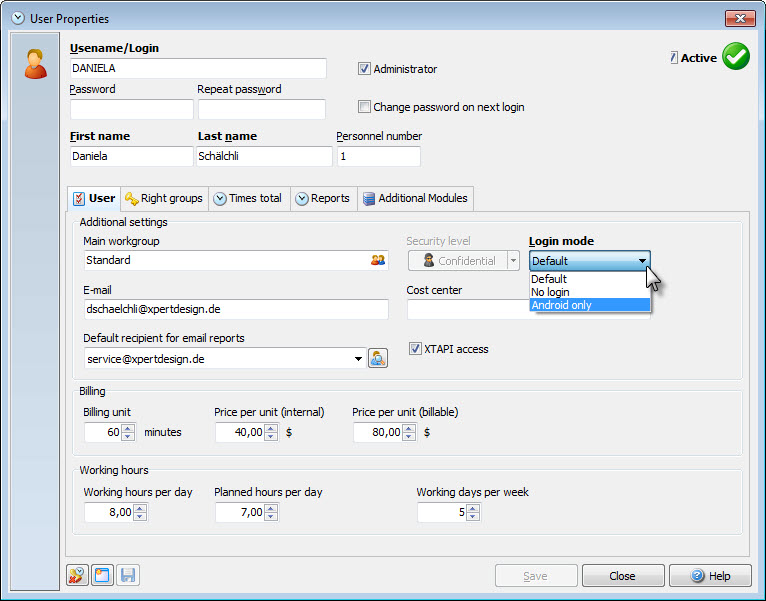
There are three different login options in Xpert-Timer
Standard |
This is the standard user, logging into the Xpert-Timer system. |
No Login user |
This user will never log into the Xpert-Timer system. This user is for administration only, for example external employees that hand over their working ours, but never use the system to track their time, due to critical information that should stay in the company. |
Only Android |
These users only use their Android mobile device to track time and synchronize it to the main database. They never use the Windows system. |
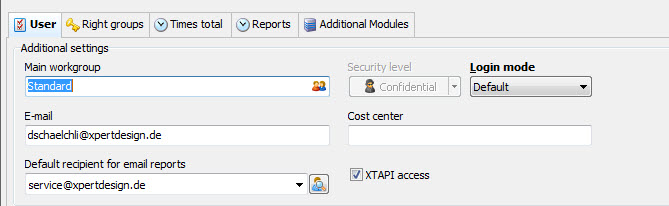
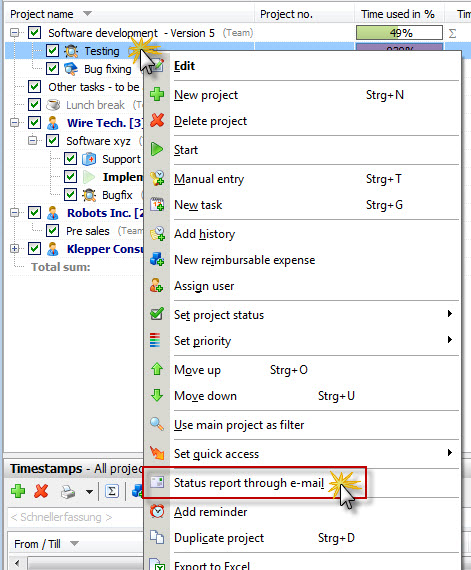
In case you use the email functions in Xpert-Timer, make sure to enter a valid email address here. This way you can send reports or emails by simply hitting a button in Xpert-Timer. It's even easier if the receiver of the email is always the same address. Add this standard address and all reports will automatically be sent to this address. For example right click on a project and choose "Send status report by email"
The security level refers to the document management. If the security level of a document is the same or lower than specified in the user settings, the user sees those documents. If the security level is higher for the documents, the user has no access.
Using the billing settings in your user dialog, you can calculate the costs for projects based on these entries. The price per unit internal will be used for the calculation of the cost per project, while the Price per unit (billable) will be used to bill the client, if you have chosen to pull the project price from the user settings in the properties of the project.
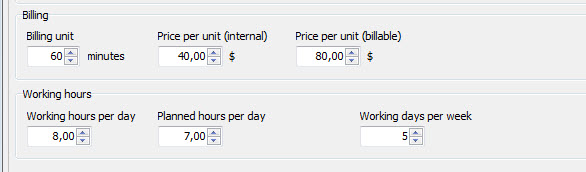
The working hours per day are used for the calculation of overtime. Also, in the time bar you can see your current working hours. As soon as the total hours exceed your working hours per day, the sum will be displayed in a red font.
Please note, that Xpert-Timer does not include an overtime manager, so you'll only get your overtime hours displayed, but you cannot manage them in any way.
The planned hours per day are used to calculate the end time of a project if you enter a start time. The finish date will be automatically calculated based on the estimated time needed. The working hours per day are also for the calculation of the finish date.
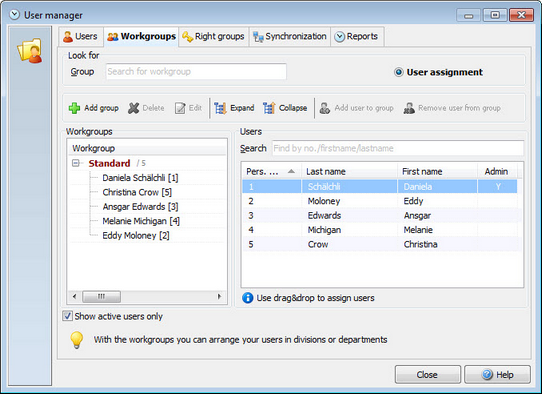
Choose the tab "Workgroups" in order to assign the user to certain groups. Those workgroups are only to filter your users, in case you have very many. There's no other functionality behind these workgroups. In the future, we are planning on using these workgroups for project visibility, but that's not been implemented yet.
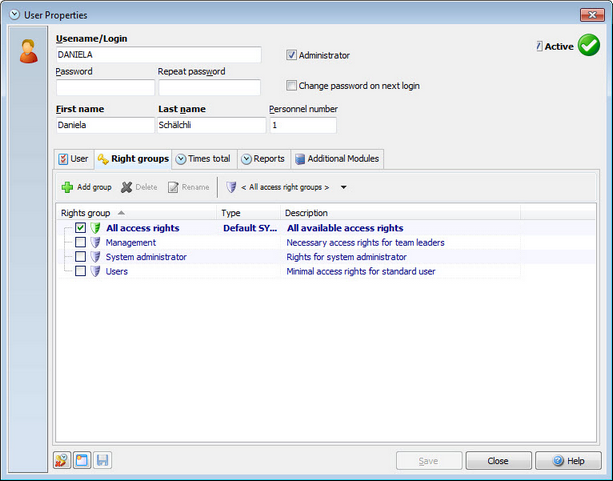
Assign the user to an access level here. Those access levels are created in the user management dialog. This way you can have your manager see more projects and details in Xpert-Timer compared to a standard user. You should always only assign one Access level to the user, otherwise the level with less access rights will be used.
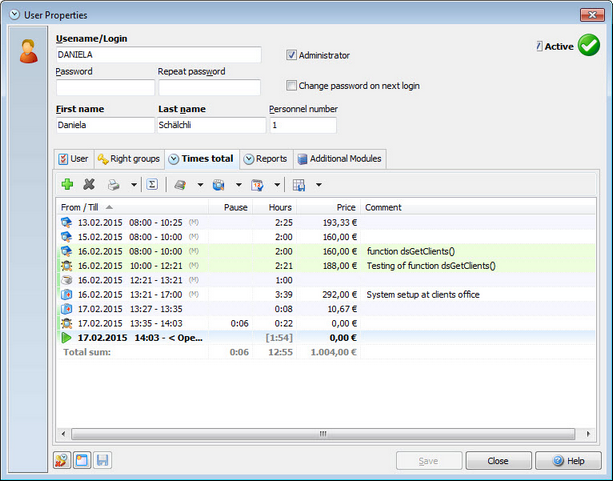
Times total shows how may hours the user has worked this month. You can print this report by right clicking or hitting the button "Print". The report is created by the first and last timestamp of the day. So if you have Xpert-Timer in your auto start, you can use it as a work time tracker as well.
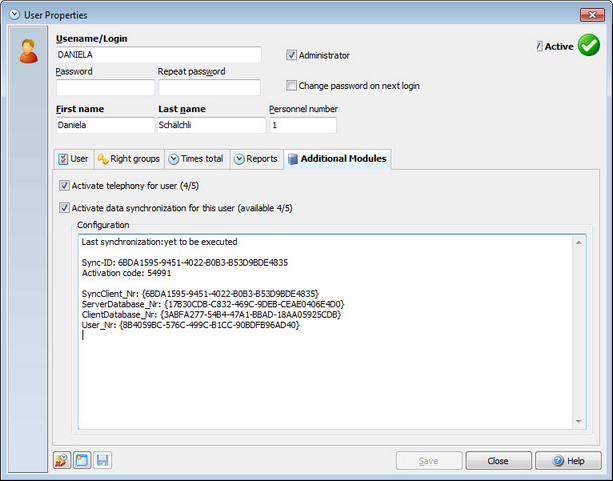
In this tab you can assign special modules to your user. This might be the XTReport Modul or the synchronization module.
If you want to activate the Syncronization, please read the chapter: Activate Sychronization