Zeitstempel erstellen / nachtragen |
  
|
Zeitstempel erstellen / nachtragen |
|
If you right click on a project or if you right click on the Xpert-Timer Symbol in your SYSTRAY, you can choose the manual entry. You can also mark the project you want to create the manual entry with the mouse and hit the keyboard combination CTRL + T to create a manual entry.
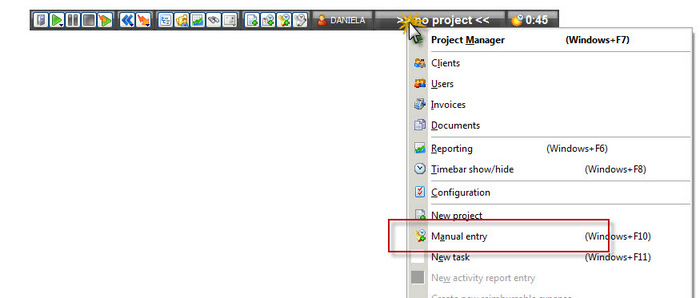
|
Create a manual entry |
|---|---|
In case you don't want to use the timebar, you can create timestamps manually. Don't forget that the timebar makes the time tracking easier. This way you won't forget to write don't the project times, so make sure you use the manual entries only if really necessary. |
|
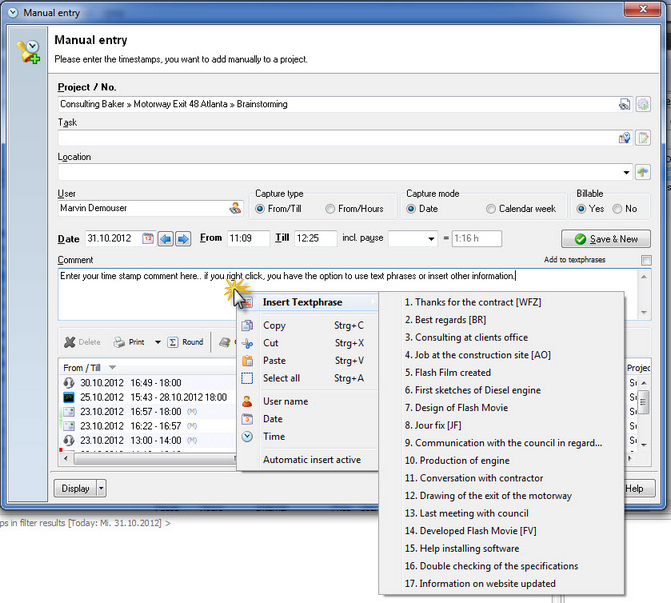
Choose the project you want to create the manual entry for. Enter all necessary details.
From/Till |
Here enter the time you want to create the timestamp for. |
From/Hours |
Instead of entering the time from/till, you can also enter the total sum of hours you've worked. For example: 2.5 h |
Date |
With the date option, you can manually enter a certain date for your timestamp. |
Calender week |
If you choose calender week, you can enter multiple timestamps within a week easier. |
Billable |
Decide, if the entered timestamp is billable or not. This is important for accounting. Billable timestamps can be listed on an invoice, while not billable timestamps won't appear in the invoice. |
Use the TAB-Key to jump from one field to the next, so you save time not using the mouse. If you hit Save, the timestamp is saved and will show up in the list at the bottom of the dialog. All manual entries are listed here.
Use the Comment area to capture the reason of this manual entry. Maybe in a couple of weeks you are wondering why you added the time to the project.
The list displays the last manual entries you created for th project
