Reporting / Statistics |
  
|
Reporting / Statistics |
|
In case you need a report showing the percentage of time spent on every project, you can use the statistic module. This reporting module is not as flexible as the timestamp report. So here you are only able to run a report on one or all users, but you cannot show every users stamped time. You'd need to do that in the timestamp report.
Click on the "Reporting" button in the project manager to open the dialog.

There are multiple options and filters available in your report dialog:

Client / No., Project / No. |
Show the data of only one certain client or project. You can either enter the name or the number of the project / client. |
Project type |
Filter here for a certain project type. The project types can be set in the configuration |
Project status |
This way you can display only "billed", "active" projects. There's more project states available. Just use the drop down, to choose. |
Timestamp status |
Every timestamp can own a certain status. For example "billed". Use this filter to display only timestamps with a certain status. |
Search project |
Here you can enter part of a project name to search or filter for it. |
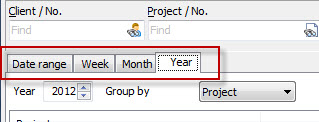
You can sort your reports by day, week, month, year or a certain date range by clicking on the tab. Only projects that ran during that time period will be displayed.
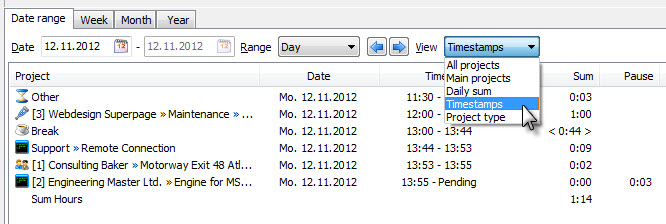
You can display the sum of the project or every single timestamp. But remember you cannot group them in this dialog. You'd need to use the timestamp list to do so.
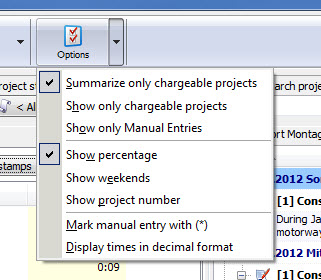
In the Options, you can have Xpert-Timer mark manual entries with a (*). This won't get printed. The < > brackets that appear around some times, are for "not billable" timestamps. Those times are not calculated into the total sum of your timstamps. (See example above).
In order to set a project as "not billable", you need to open the project settings and change the setting there.
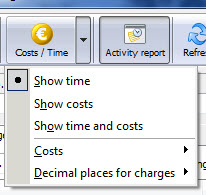
There's also a "Cost/Time" button available in your menu. This way you can display the costs on the projects. Xpert-Timer calculates those costs, based on the rates you entered for your user and the project.
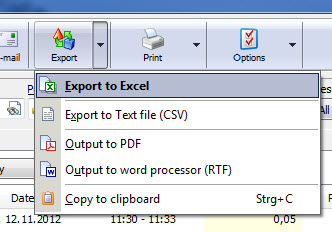
You can export the data to Excel if you need to. It's better to change the time format to "Decimal format" before exporting.
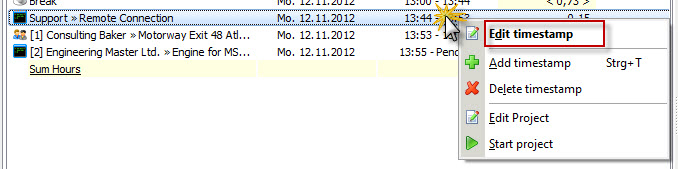
In case you need to change a timestamp, you can do so by right-clicking on the timestamp and choosing -> Edit.