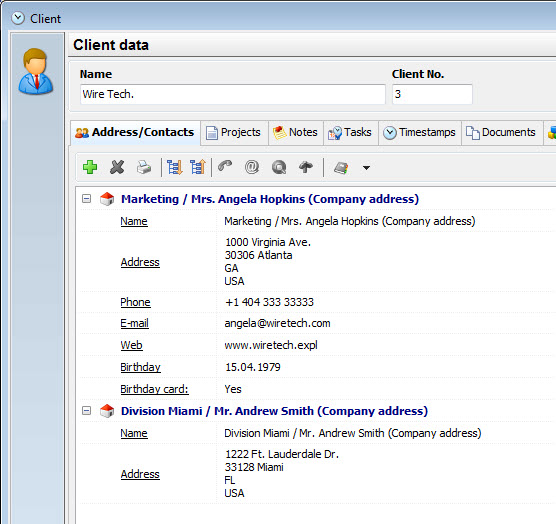
Add/edit client |
  
|
Add/edit client |
|
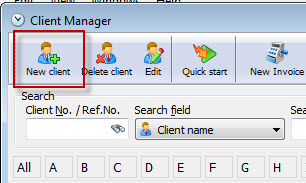
Click on the menu button "New client" in your client management, in order to create a new client.
Enter the client name, which will also appear in your project manager. In case you only want to enter the client name, you can save the entry now and enter no further data. The name is enough. But if you want to send an invoice to the client or use the CRM options available, you should enter your client details.
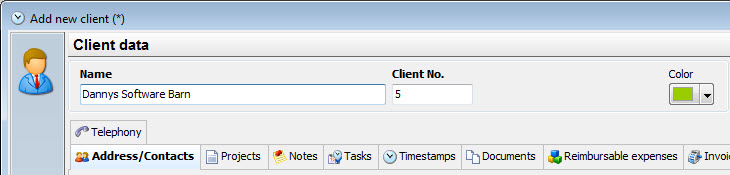
|
Client details |
|---|---|
If you want to use Xpert-Timer to create your invoices, you need to enter an invoicing address in your client data. |
|
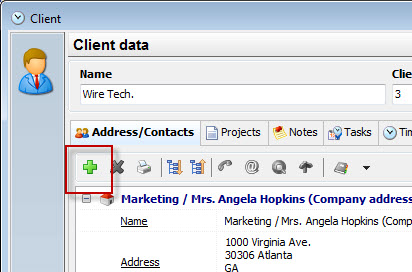
If you wish to do so, click on the green plus button to add further details to your client. You can add multiple contact addresses to one of your clients.
The contact dialog is designed for european addresses, therefore if the fields don't get printed the way you need them, use the free address field instead.
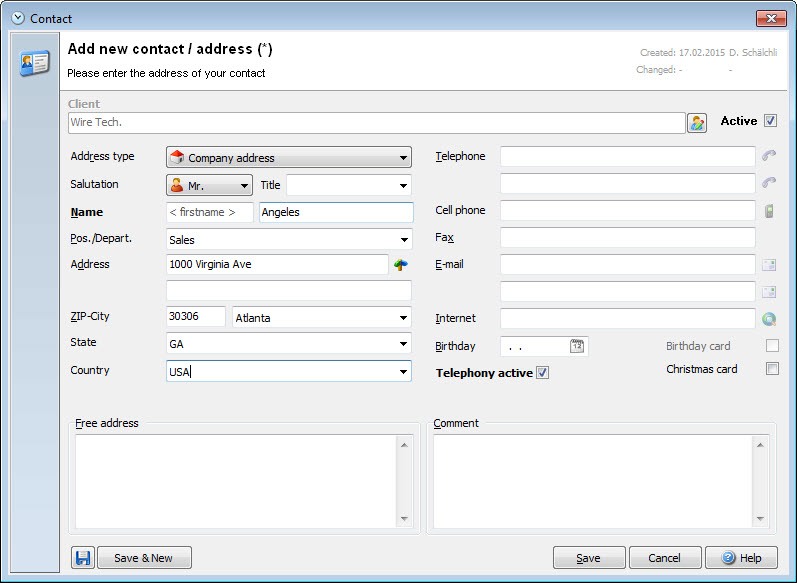
The Pos./Depart. area is only for organizing your contacts within one company. There might be multiple contact addresses to one main company. This way you keep a better overview.
|
Free address |
|---|---|
If the address fields don't work for your address, use the free address field instead. |
|
This is the address how it appears in the Xpert-Timer system: